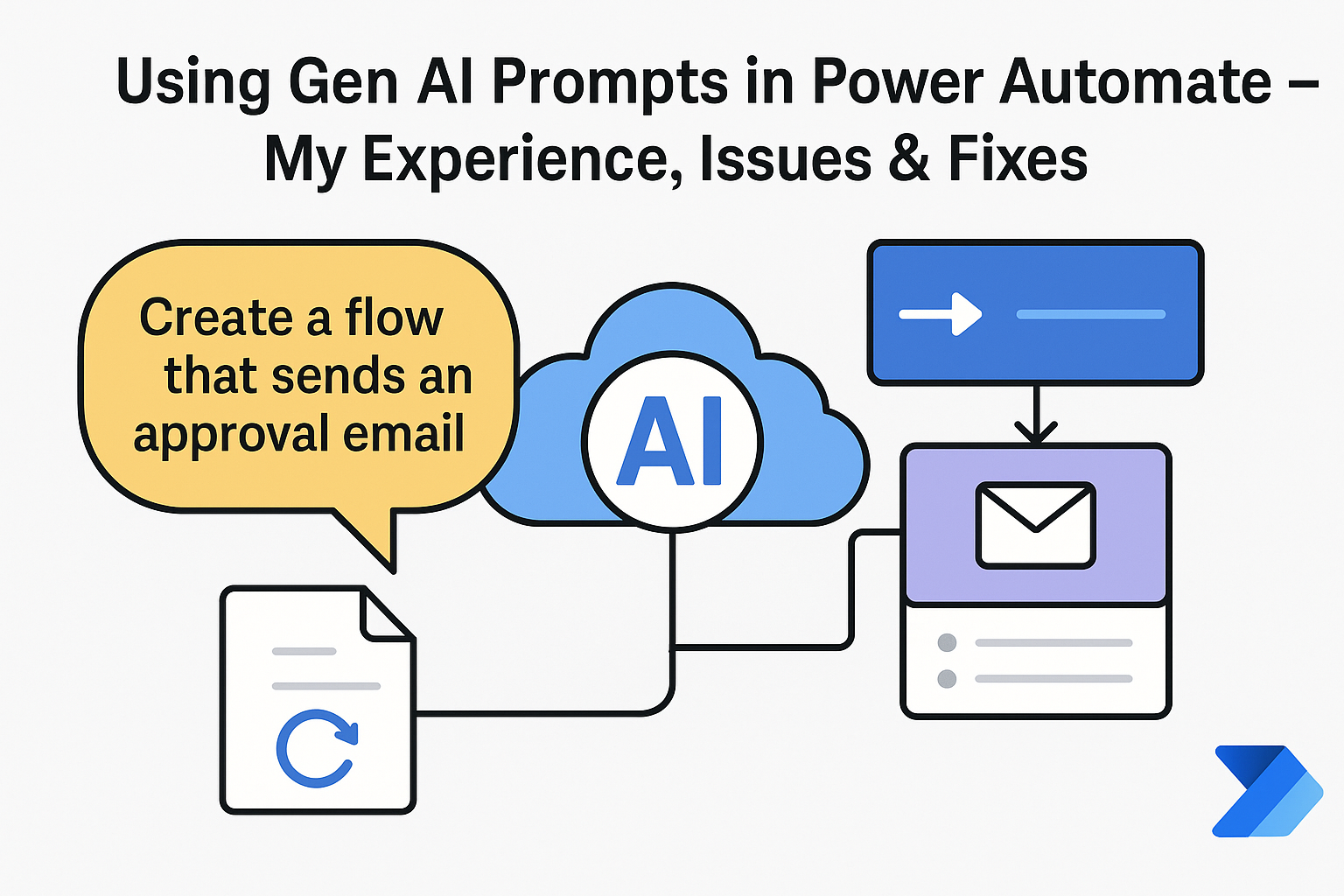
With Microsoft steadily integrating Copilot and Gen AI features into its Power Platform, automation has entered a new era. Tools like Power Automate, which already made workflow creation simpler, now empower users to describe processes in plain English and generate flows automatically.
But as I explored this feature in real-world use cases, I found that while Gen AI inside Power Automate can save hours of effort, it also comes with a learning curve and certain limitations that developers and automation enthusiasts should know.
⚙️ What Are Gen AI Prompts in Power Automate?
The new Gen AI capabilities in Power Automate (also called Copilot for Power Automate) allow you to use natural language prompts like:
“Create a flow that sends an approval email when a new file is uploaded to SharePoint.”
Power Automate’s AI engine interprets this and generates a base flow — complete with triggers, actions, and connectors. You can then refine or extend the flow manually.
Essentially, it’s prompt-engineering for automation, not just for text or chat.
🧠 Use Cases I Explored
Here are a few general, non-confidential scenarios where Gen AI prompts can accelerate flow creation:
- File Handling & Notifications
Automatically trigger actions when new files are created in SharePoint or OneDrive, and notify teams through Teams or Outlook. - Data Entry Automation
Use AI to draft Power Automate flows that extract structured information from emails, forms, or uploaded documents, and then store it in Excel or Dataverse. - Approval Workflows
Generate approval and escalation flows using natural language instead of manually selecting each action. - Summarization & Reporting
AI can be prompted to summarize data (like form responses or daily reports) and send concise updates to stakeholders.
⚠️ Issues I Faced While Using Gen AI Prompts
While the experience was mostly positive, I encountered a few recurring challenges worth mentioning:
- Environment Variables Not Recognized
After moving a flow to a solution and creating environment variables, I noticed the Gen AI editor sometimes couldn’t detect or apply them.
Fix: Open the flow directly within the solution context (not standalone) and make sure variables are properly bound to the environment before using AI-generated steps. - Limited Connector Awareness
The Gen AI sometimes creates actions for connectors not enabled in your environment or with missing permissions.
Fix: Enable all necessary connectors in Data → Connections and refresh the Copilot interface before regenerating. - Ambiguous Prompts → Unintended Actions
Using vague language (like “send report” or “save document”) can lead to incorrect or incomplete flows.
Fix: Be specific in your prompt — mention exact services, trigger conditions, and output formats. Example: “When a file is uploaded to SharePoint folder X, copy it to folder Y and send an adaptive card in Teams.” - Expression and Dynamic Content Errors
AI sometimes adds expressions that don’t match the data type (e.g., comparing text with number).
Fix: Review all generated expressions under the “Peek Code” option. Replace incorrect formulas manually. - Region and Licensing Limitations
Certain Gen AI features are in preview or limited by region/tenant setup.
Fix: Check Microsoft 365 Admin Center → Settings → Power Platform → Features to ensure Copilot for Power Automate is turned on and supported in your region.
🧩 Best Practices for Using Gen AI Prompts Effectively
- Break Down Complex Scenarios: Instead of one long prompt, create smaller prompts for modular flow parts.
- Use Comments in AI Steps: Describe what each step should achieve to make future debugging easier.
- Validate Trigger Conditions: AI often picks a generic trigger — always confirm it aligns with your business logic.
- Version Your Flows: Export as a solution frequently. Gen AI suggestions can overwrite manual changes.
- Keep Security in Mind: Avoid adding confidential data (URLs, credentials, or identifiers) in prompts. Always use environment variables or connections for sensitive configurations.
💡 Example Prompt You Can Try
“Create a flow that triggers when a new email arrives in Outlook with the subject containing ‘Invoice’. Save the attachment to OneDrive, rename it with today’s date, and notify the Finance team in Teams.”
Power Automate Copilot will generate most of this automatically. You can then tweak folder paths, file naming logic, and notification format.
🔍 Key Takeaways
- Gen AI in Power Automate is a game-changer, especially for rapid prototyping and non-technical users.
- Prompt clarity and context are critical — the better you describe your intent, the smarter the output.
- Always review, test, and validate the generated flow before using it in production.
- It’s not a “one-click magic,” but a smart co-creator that accelerates repetitive tasks.
✨ Conclusion
Integrating Gen AI prompts into Power Automate feels like unlocking a new level of productivity. It bridges the gap between idea and implementation, letting you focus more on what to automate rather than how to automate it.
While there are still quirks and preview limitations, Microsoft is rapidly improving this feature. If you use Power Automate regularly, now is the perfect time to experiment, learn prompt patterns, and future-proof your automation skills.

Leave a Reply